

Exporting an Application as UCS Microservice — UCS Tools Documentation
?q={your_question}.Title: Exporting an Application as UCS Microservice#
URL Source: https://docs.nvidia.com/ucf/2.10.0/text/UCS_Export_App_as_MS.html
Published Time: Thu, 30 Oct 2025 07:23:03 GMT
Markdown Content: UCS Tools allow you to export applications as microservices. This enables you to reuse these applications with their microservices and configuration. You can do this with both the textual representation and CLI tools, and with UCS Studio.
We will demonstrate this for the Text Chatbot and Speech Chatbot applications shown in the Getting Started section. A new microservice will be created from an application containing BotMaker Speech Controller, BotMaker Dialog Manager and Riva Speech Skills microservices. You can reuse this new microservice with BotMaker Text WebApp microservice to create the Text Chatbot or with BotMaker Speech WebApp microservice to create the Speech Chatbot.
Using CLI Tools#
Export App as Microservice#
You can use the app export-ms command of the UCS AppBuilder CLI tool for this. It requires the app YAML file and an Export Information file. This file contains additional information required from the user to export an application as a microservice.
First, create an app YAML ucf-bot-app.yaml with the following contents:
specVersion: 2.5.0
version: 0.0.1
doc: ''
name: ucf-bot-app
description: Bot microservice application
dependencies:
- ucf.svc.riva.speech-skills:2.0.0
- ucf.svc.botmaker.dialog-manager:2.0.0
- ucf.svc.botmaker.speech-controller:2.0.0
components:
-
name: Riva Speech Skills type: ucf.svc.riva.speech-skills parameters: buildModelEngines: 'true' ngcModelConfigs:
-
nvidia/riva/rmir_asr_citrinet_1024_en_us_str:2.6.0
-
nvidia/riva/rmir_tts_fastpitch_hifigan_en_us:2.6.0
-
eevaigoeixww/ucf-11-ea-release/misty_text_classification:1.7.3-ea
-
eevaigoeixww/ucf-11-ea-release/intent_slot_weather:1.7.3-ea
-
eevaigoeixww/ucf-11-ea-release/intent_slot_poi:1.7.3-ea
-
eevaigoeixww/ucf-11-ea-release/intent_slot_smalltalk:1.7.3-ea
-
nvidia/riva/rmir_nlp_question_answering_bert_base:2.6.0
-
nvidia/riva/rmir_nlp_named_entity_recognition_bert_base:2.6.0 secrets: ngc-api-key-secret: ngc-api-key
-
name: BotMaker Dialog Manager type: ucf.svc.botmaker.dialog-manager parameters: botNgcPath: eevaigoeixww/ucf-11-ea-release/misty_bot:2.0.0-ea-x86_64 botConfigName: misty_bot_config.yaml botConfig: fulfillments: weather: parameters: api-key: XXXXXXXXXXXXXXXXXXXXX poi: parameters: api-key: XXXXXXXXXXXXXXXXXXXXXXXXXXXXXXXXXXXXXXXXXXXXXXXXXXXXXXX here-api-key: XXXXXXXXXXXXXXXXXXXXXX map: parameters: api-key: XXXXXXXXXXXXXXXXXXXXX secrets: ngc-api-key-secret: ngc-api-key
-
name: BotMaker Speech Controller type: ucf.svc.botmaker.speech-controller parameters: pipeline: speech_lite wordBoostFilePath: '' secrets: ngc-api-key-secret: ngc-api-key
connections: BotMaker Dialog Manager/riva-speech: Riva Speech Skills/riva-speech-api BotMaker Dialog Manager/triton-grpc: Riva Speech Skills/triton-grpc BotMaker Speech Controller/riva: Riva Speech Skills/riva-speech-api BotMaker Speech Controller/dialog-manager: BotMaker Dialog Manager/dialog-manager
secrets: ngc-api-key: k8sSecret: secretName: ngc-api-key-secret key: NGC_API_KEY
Next, create the export information file named export-info.yaml with the following contents:
specVersion: 2.5.0
msInfo: name: ucf.svc.my-bot version: 0.0.1 description: Chatbot microservice with smalltalk, weather and maps support displayName: My Bot category: functional: Speech AI industry: General
parameters:
- name: imagePullSecrets mapsTo:
- microservice: BotMaker Dialog Manager parameter: imagePullSecrets
- microservice: BotMaker Speech Controller parameter: imagePullSecrets
- microservice: Riva Speech Skills parameter: imagePullSecrets
secrets:
- name: ngc-api-key
ingress-endpoints:
- name: speech-controller-api mapsTo: BotMaker Speech Controller/grpc-api
- name: dialog-manager mapsTo: BotMaker Dialog Manager/dialog-manager
The export information contains basic information for the microservice to be created. It also includes parameters, endpoints and secrets of individual microservices in the application to export and how to map them.
In the above example, the grpc-api ingress endpoint of the BotMaker Speech Controller microservice must be exported and named speech-controller-api. Add a parameter named imagePullSecrets and map it to the imagePullSecrets parameter of the three microservices. Export the ngc-api-key secret that is in the application as secret requirement of the microservice to be created.
You can export the application now that all the required information is available. Run the following command:
$ ucf_app_builder_cli app export-ms ucf-bot-app.yaml -e export-info.yaml 2023-04-20 13:44:05,679 - AppBuilder - INFO - Syncing any missing service versions to cache... 2023-04-20 13:44:16,463 - AppBuilder - INFO - Validating application ... 2023-04-20 13:44:16,550 - AppBuilder - INFO - Building application ucf-bot-app-0.0.1 ... 2023-04-20 13:44:17,329 - AppBuilder - INFO - Application Information written to /tmp/tmp__oanp37/app_info.yaml 2023-04-20 13:44:17,333 - AppBuilder - INFO - Application compliance report generated at /tmp/tmp__oanp37/compliance_report.json 2023-04-20 13:44:17,334 - AppBuilder - INFO - Application Helm Chart generated in /tmp/tmp__oanp37 2023-04-20 13:44:17,475 - AppBuilder - INFO - Existing chart mentioned in manifest. Skipping helm chart generation 2023-04-20 13:44:17,806 - AppBuilder - INFO - MS spec generated in ucf-bot-app-ms/output/msspec 2023-04-20 13:44:22,468 - AppBuilder - WARNING - Mandatory compliance checks failed. Check ucf-bot-app-ms/output/compliance_test_logs.txt for more information 2023-04-20 13:44:22,853 - AppBuilder - INFO - MS spec generated in ucf-bot-app-ms/output/msspec 2023-04-20 13:44:22,862 - AppBuilder - INFO - Building test application 'dev' 2023-04-20 13:44:22,868 - AppBuilder - INFO - Syncing any missing service versions to cache... 2023-04-20 13:44:22,869 - AppBuilder - INFO - Validating application ... 2023-04-20 13:44:22,873 - AppBuilder - INFO - Building application my-bot-dev-0.0.1 ... 2023-04-20 13:44:23,201 - AppBuilder - INFO - Application Information written to ucf-bot-app-ms/output/tests/dev/app_info.yaml 2023-04-20 13:44:23,205 - AppBuilder - INFO - Application compliance report generated at ucf-bot-app-ms/output/tests/dev/compliance_report.json 2023-04-20 13:44:23,205 - AppBuilder - INFO - Application Helm Chart generated in ucf-bot-app-ms/output/tests/dev 2023-04-20 13:44:23,205 - AppBuilder - INFO - Tests generated in ucf-bot-app-ms/output/tests 2023-04-20 13:44:23,340 - Registry - INFO - Generating test helm chart packages... 2023-04-20 13:44:23,552 - AppBuilder - INFO - Added microservice 'ucf.svc.my-bot:0.0.1' to local repository 2023-04-20 13:44:23,553 - AppBuilder - INFO - Microservice created in ucf-bot-app-ms 2023-04-20 13:44:23,566 - AppBuilder - INFO - App exported as Microservice
If successful, logs will show the location where the microservice builder input was generated (ucf-bot-app-ms).
The export functionality creates template test application, README, changelog and manual compliance result input. You can update these as required and rebuild the microservice.
Using the new microservice in an application#
Create a new application YAML file named speech-chatbot-app.yaml with the following contents:
specVersion: 2.5.0
version: 0.0.1
doc: ''
name: speech-chatbot
description: speech-chatbot
dependencies:
- ucf.svc.my-bot:0.0.1
- ucf.svc.botmaker.speech-web-app:2.0.0
components:
-
name: My Bot type: ucf.svc.my-bot parameters: imagePullSecrets:
-
name: ngc-docker-reg-secret secrets: ngc-api-key: ngc-api-key
-
name: BotMaker Speech Web App type: ucf.svc.botmaker.speech-web-app parameters: imagePullSecrets:
-
name: ngc-docker-reg-secret
connections: BotMaker Speech Web App/speech-controller: My Bot/speech-controller-api
secrets: ngc-api-key: k8sSecret: secretName: ngc-api-key-secret key: NGC_API_KEY
In this application, the newly created microservice has been used. The exported imagePullSecrets parameters have been set, the exported speech-controller-api ingress endpoint has been connected to and exported ngc-api-key secret has been set. This application should behave identical to the Speech Chatbot application in Getting Started guide.
Build the application using:
$ ucf_app_builder_cli app build speech-chatbot-app.yaml 2023-04-20 14:02:07,410 - AppBuilder - INFO - Syncing any missing service versions to cache... 2023-04-20 14:02:07,411 - AppBuilder - INFO - Validating application ... 2023-04-20 14:02:07,415 - AppBuilder - INFO - Building application speech-chatbot-0.0.1 ... 2023-04-20 14:02:11,056 - AppBuilder - INFO - Application Information written to speech-chatbot-0.0.1/app_info.yaml 2023-04-20 14:02:11,071 - AppBuilder - INFO - Application compliance report generated at speech-chatbot-0.0.1/compliance_report.json 2023-04-20 14:02:11,072 - AppBuilder - INFO - Application Helm Chart generated in speech-chatbot-0.0.1 2023-04-20 14:02:11,072 - AppBuilder - INFO - App built
The application helm chart will be built in speech-chatbot-0.0.1. Deploy and interact with the application as described in Deploy the Reference Application.
Export Information File Format#
Following is the expected format of the export information file:
UCS MS Spec Version the file follows.
specVersion: 2.5.0
Basic information for the microservice to be created
msInfo:
Name for the microservice. Must start with ucf.svc. prefix
Optional. If not specified, will be set to ucf.svc.<app-name>
name: ucf.svc.my-bot
Version for the microservice. Must follow semantic versioning
Optional. If not specified, will be set to version of the application
version: 0.0.1
Short description of the microservice.
Optional. If not specified, will be set to the description of the application.
description: my-bot
User friendly display name for the microservice.
Optional. If not specified, will be created from the application name.
displayName: My Bot
Category for the microservice.
Optional. If not specified, will be set to blank
category: functional: Speech AI industry: Geneal
Add parameters for the microservice to be exported and map them to
parameters of individual microservices in the application.
parameters:
- name: botNgcPath # Name of parameter in exported application.
List of individual microservice parameters this parameter maps to
mapsTo:
-
microservice: BotMaker Dialog Manager # Name of the microservice in the application. Must be same as component name in the application. parameter: botNgcPath # Parameter of the microservice in the application
-
name: imagePullSecrets mapsTo:
Single parameter can map to multiple parameters
- microservice: BotMaker Dialog Manager parameter: imagePullSecrets
- microservice: BotMaker Speech Controller parameter: imagePullSecrets
List of secrets added in the application to be added as secret requirements of
microservice to be exported
secrets:
- name: ngc-api-key # Name must be same as what is added under the
secretssection
in the application.
List of ingress endpoints of microservices in the application to be
added in the microservice to be exported.
ingress-endpoints:
- name: speech-controller-api # Name to set for ingress endpoint to be added in
microservice to be exported
mapsTo: BotMaker Speech Controller/grpc-api # The actual microservice ingress endpoint it maps to.
Format: <component-name-in-app>/<name-of-ingress-endpoint-in-component>
- name: dialog-manager mapsTo: BotMaker Dialog Manager/dialog-manager
List of egress endpoints to be added in the microservice to be exported and
the egress endpoints of the microservices in the app it maps to.
egress-endpoints:
- name: riva-speech-api # Name of egress endpoint in the exported microservice.
Can map to multiple egress endpoints in the application.
mapsTo:
-
BotMaker Dialog Manager/riva-speech # Format: <name-of-component-in-app>/<name-of-egress-endpoint>
-
BotMaker Speech Controller/riva
-
name: riva-triton-grpc mapsTo:
-
BotMaker Dialog Manager/triton-grpc
Using Studio#
Export App as Microservice#
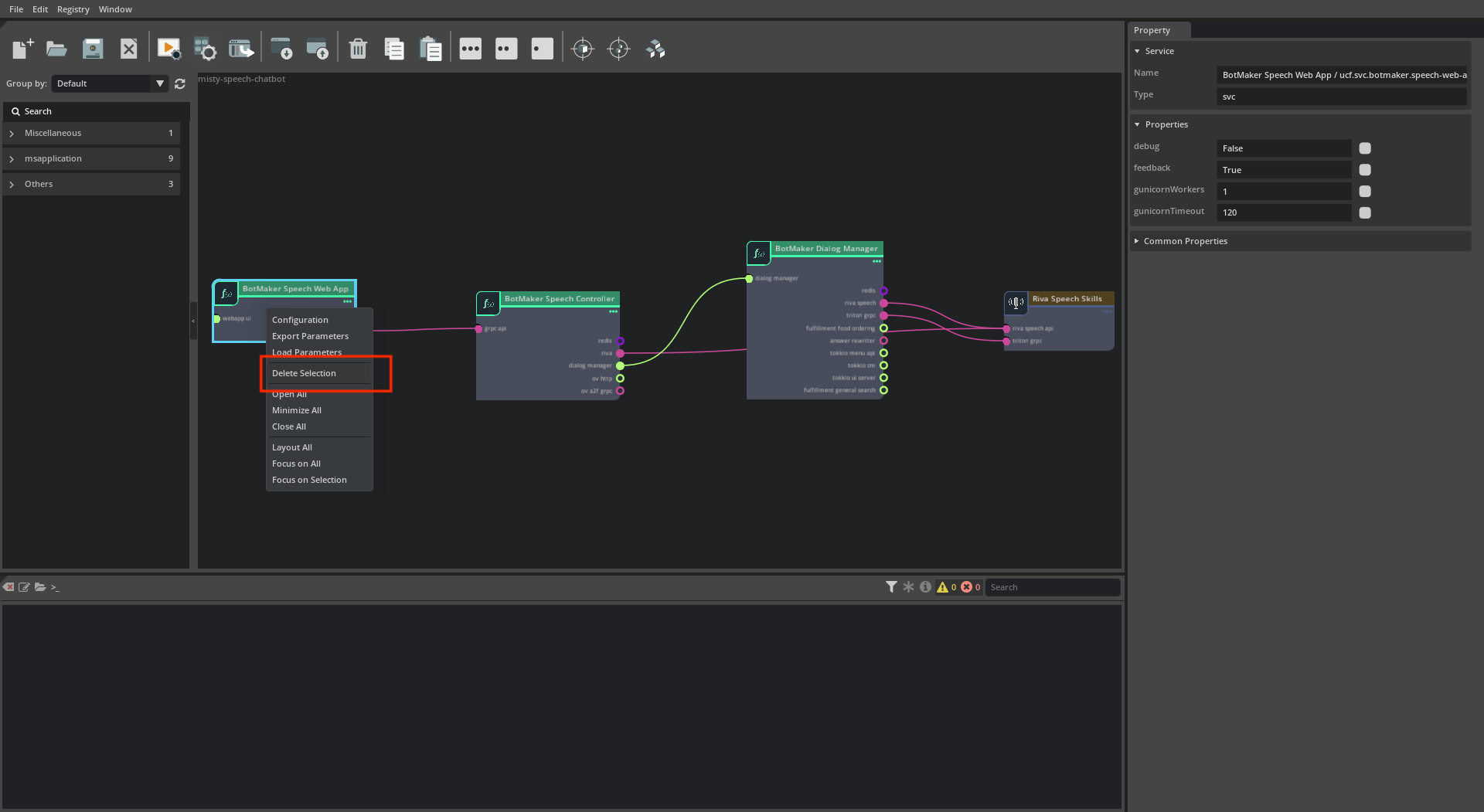
- Follow the steps in Getting Started - Speech Chatbot section to first create the app. 2. Delete the Speech Web App Microservice by first selecting it and then right-clicking to open the context menu and clicking Delete.
- Add an Export Ingress Endpoint component to export BotMaker Speech Controller
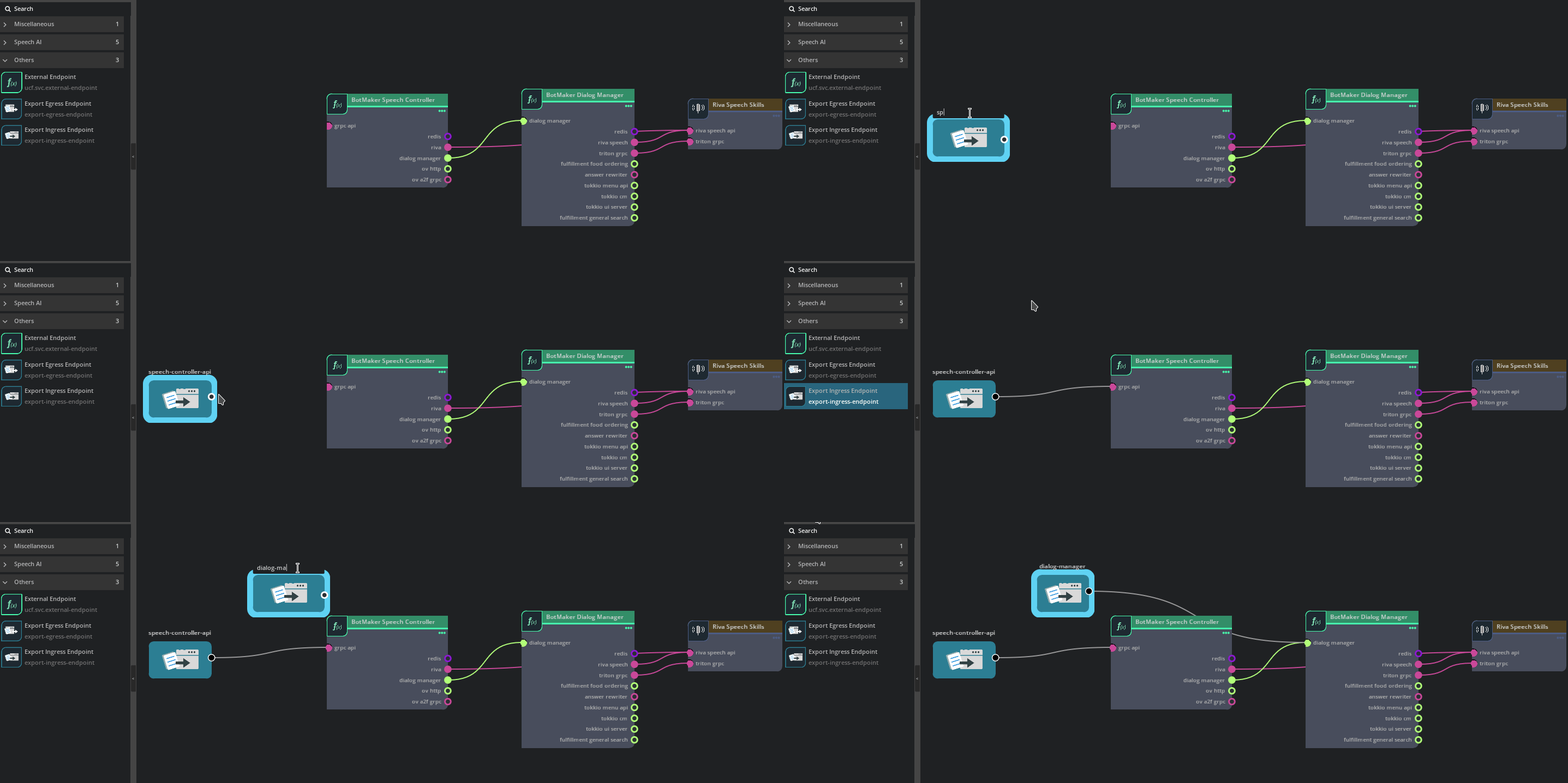
grpc-apiingress endpoint. Rename the component tospeech-controller-apiand connect it to thegrpc-apiendpoint. This will export the BotMaker Speech Controllergrpc-apiasspeech-controller-apiin the new exported microservice. Do the same for the BotMaker Dialog Managerdialog-manageringress endpoint.
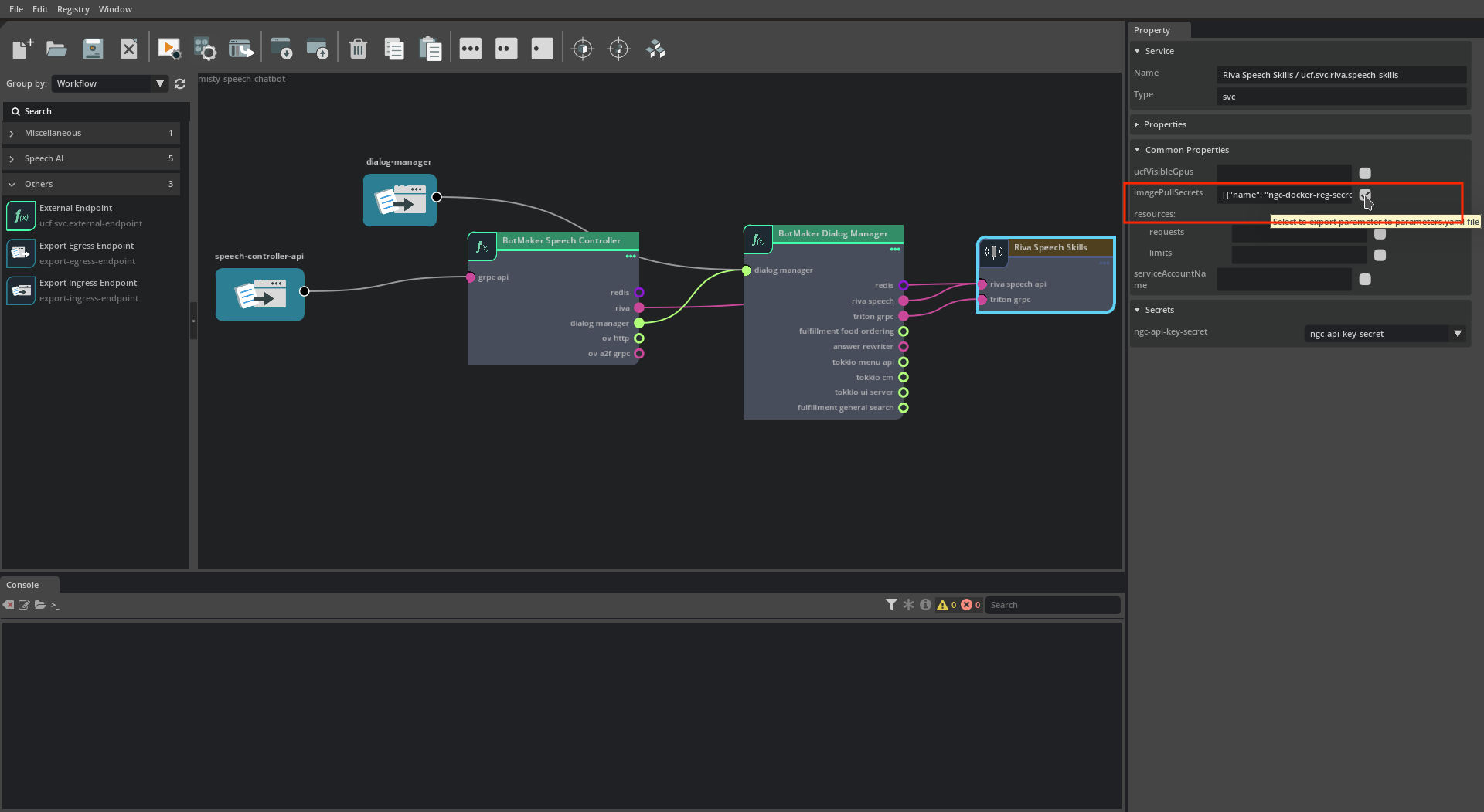
- For each of the three microservices, select the microservice, open the Common MS Params section in the Property Window on the right and select the checkbox next to
imagePullSecrets. This will addimagePullSecretsas a parameter for the new exported microservice and map it to theimagePullSecretsparameter of the three microservices.
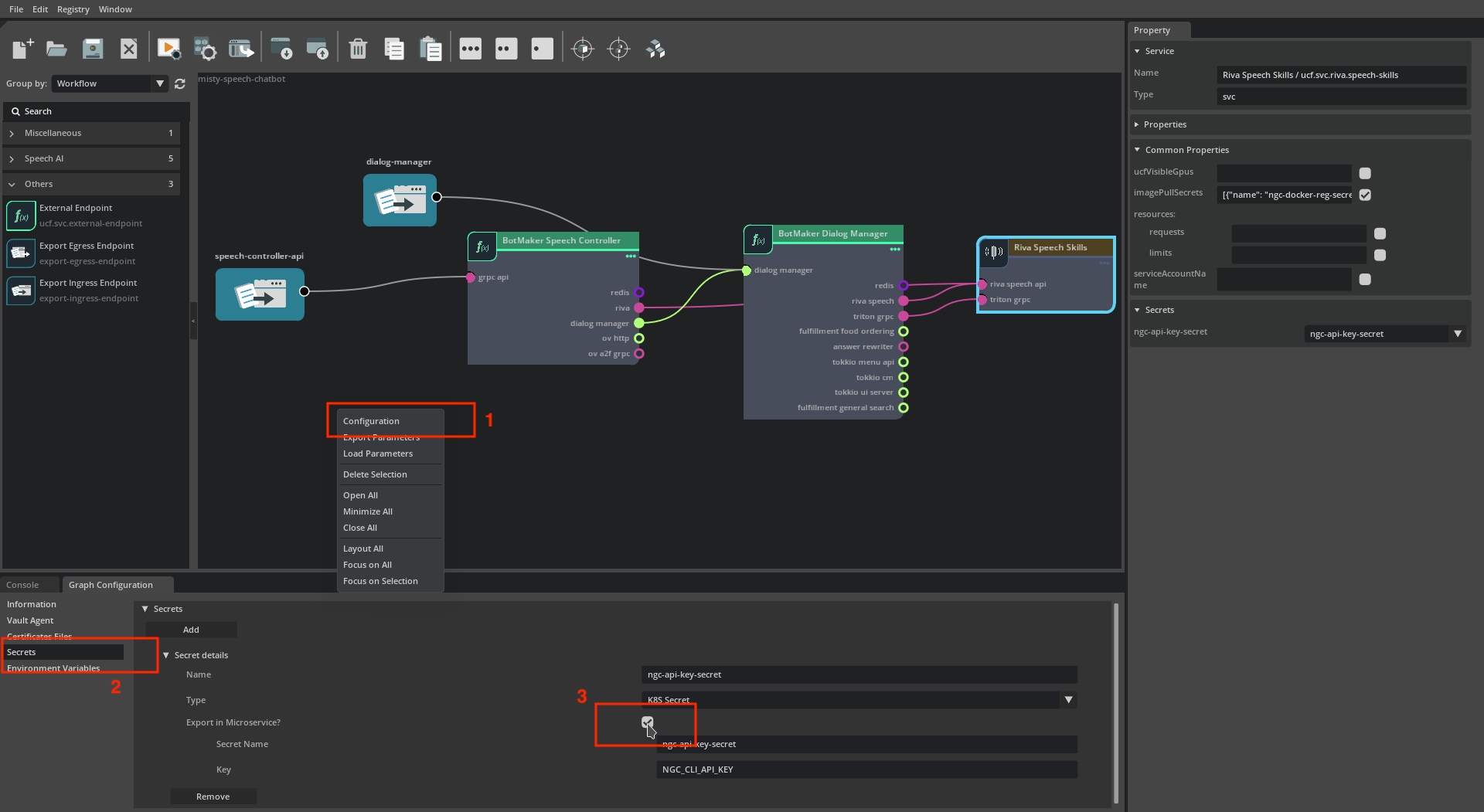
- Next, right-click on the empty area in the Graph Canvas to open the context menu and select Graph Configurator. Select Secrets section and select the checkbox for
Export in Microservicefor thengc-api-key-secretsecret. This will add thengc-api-key-secretas a secret requirement in the microservice to be created and map it to the microservices which are using this secret.
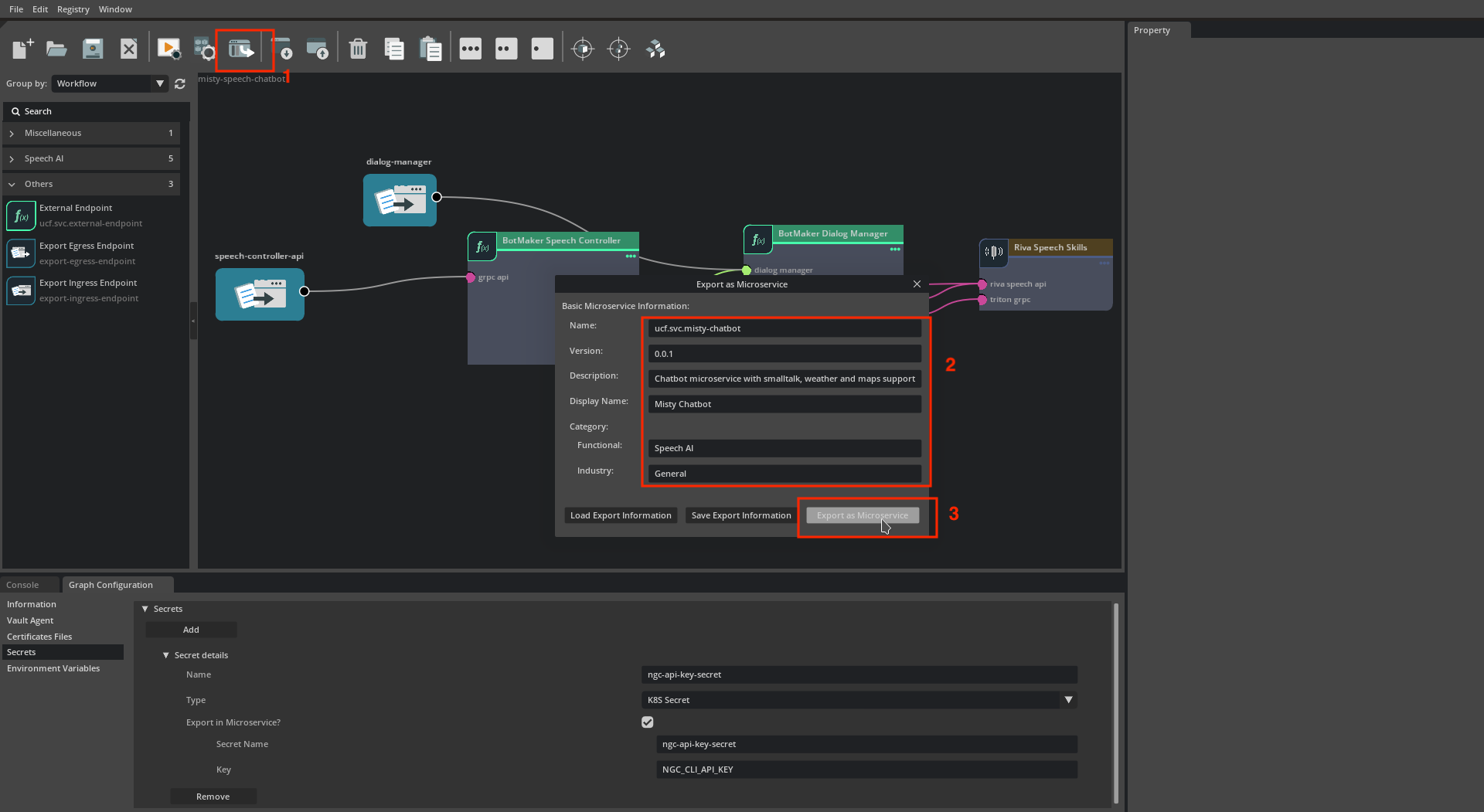
- From the actions toolbar, select the Export the current app as microservice option. This will launch the Export as Microservice Dialog. Update the basic information to be set for the microservice that will be created and click on Export as Microservice button at the bottom right of the dialog. This will open a file browser. Navigate to the directory where the Microservice Builder Input for the new microservice should be created and click on ok. This will start the export process.
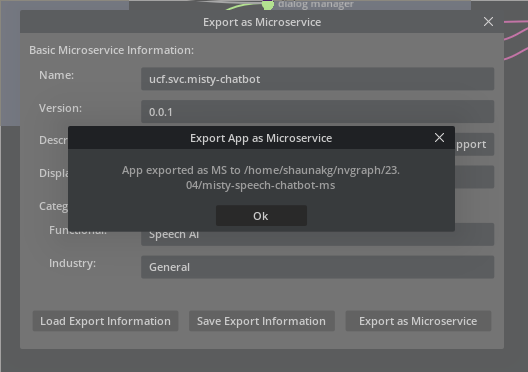
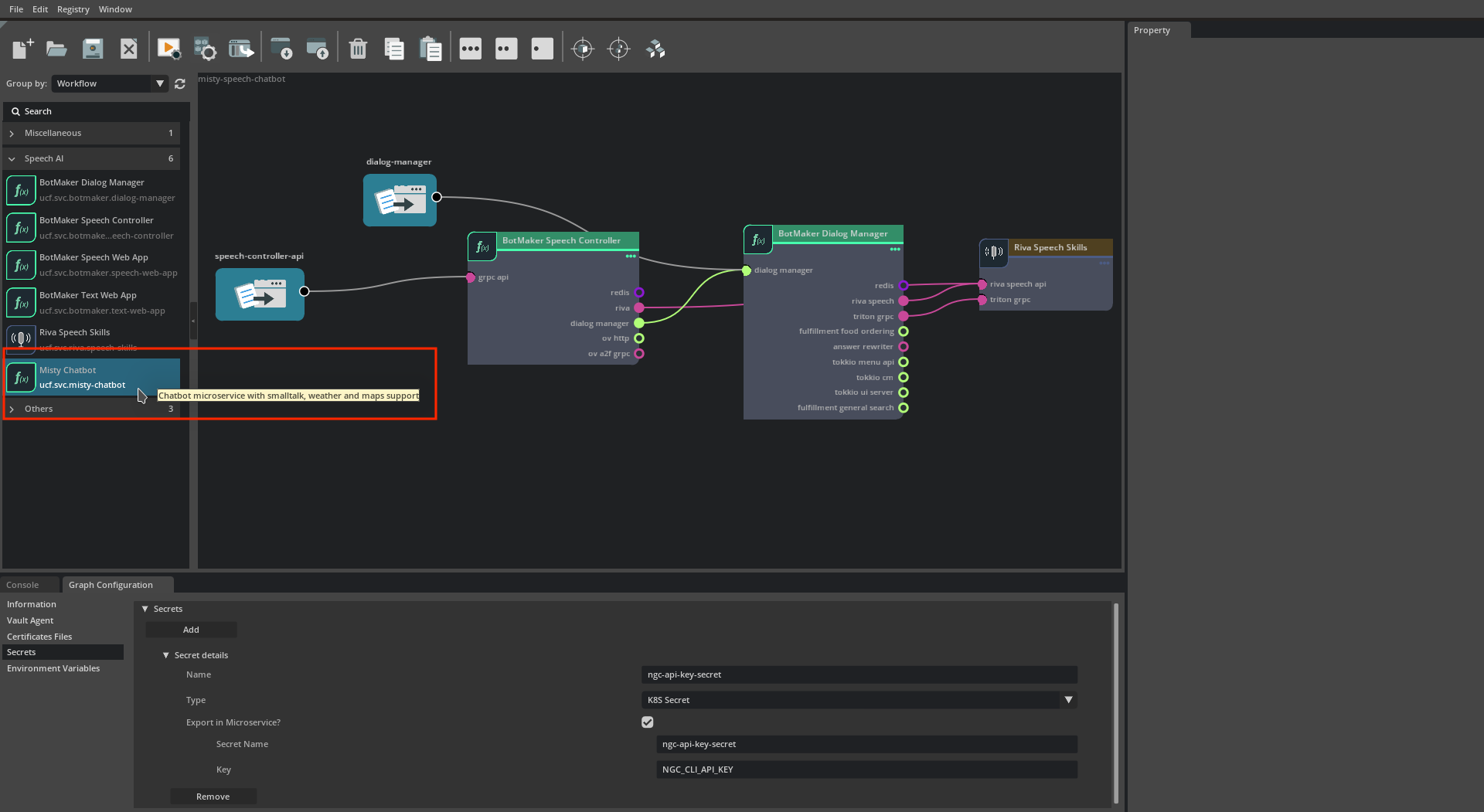
- Once done, the success dialog should be seen along with the path where the Microservice Builder Input was created. The new microservice should also now be available in the microservice list on the left.
Using the new microservice in an application#
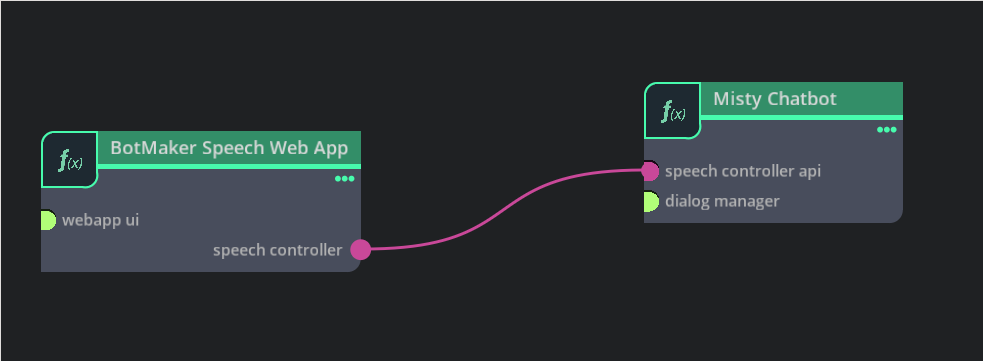
- Close any open graphs and create a new Graph. From the microservice list on the left, add BotMaker Speech Web App and My Bot microservices to the Graph. Connect
speech-controllerendpoint to thespeech-controller-apiendpoint.
- Save the following content to a file (e.g. params.yaml) and load parameters from a file as show in Load Parameters From File.
'My Bot': imagePullSecrets:
- name: ngc-docker-reg-secret
'BotMaker Speech Web App': imagePullSecrets:
- name: ngc-docker-reg-secret
-
Create a new
ngc-api-keysecret and assign it to the My Bot microservice as shown in UCS Text Bot Application - Set Secrets. -
Follow instructions in Build the Reference Application in the UCS Text Bot Application application section to build the application.
-
Deploy and interact with the application as described in Deploy the Reference Application.
Links/Buttons:
- #
- Getting Started
- Deploy the Reference Application
- Getting Started - Speech Chatbot
- Load Parameters From File
- UCS Text Bot Application - Set Secrets
- Build the Reference Application